Stevenboffa.com

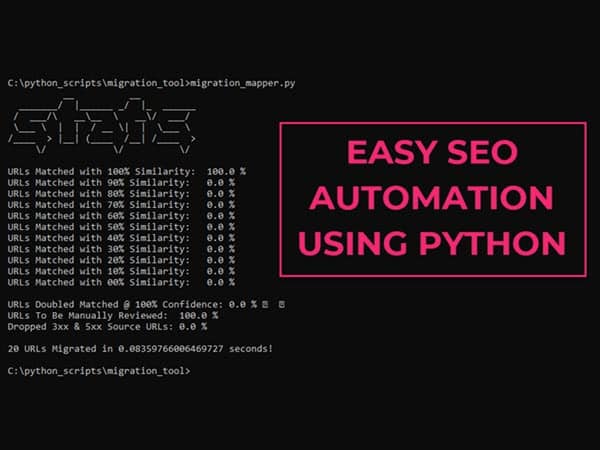
python script being executed for SEO URL mapping

How to automate URL redirect mapping using Python

Python is an incredibly powerful server side scripting language that can be leveraged for SEO. In this post, I am going to provide a step by step guide on how to use Python to automate URL Redirect mapping for a website migration.

Before I get started, I want to acknowledge the creator of this script (it wasn’t me) and their hard work putting it together. Below is their Twitter profile and a link to the script on Github:

lee foot twitter bio

Twitter: https://twitter.com/LeeFootSEO
Github: https://github.com/searchsolved/search-solved-public-seo/blob/main/migration_mapper/migration_mapper.py

Let me be clear: I am not trying to piggyback off his work.  When I found his twitter thread about the script, there weren’t really any instructions on how to run it.  If you’re new to running scripts with Python, it might be a little bit challenging. 

I also struggled with getting the hang of running scripts with Python at first, so this is why I thought this would be a good post for anyone who wants to learn. 

So let’s get on with it!

Article shortcuts
    Add a header to begin generating the table of contents

    URL redirect mapping for website migrations

    If you have worked client side as an SEO, you have probably worked on a website migration.  Myself, I have worked on many website migrations, including two recent big ones for opg.com & wwf.ca. Both OPG and WWF went from using Sharepoint to WordPress as their CMS. Both times, I had to create a document which listed the old page URLs and their new page URL.

    Why do we need to do this?

    As an example, with Sharepoint, the URLs were quite messy and often ended with an .aspx extension and of course, WordPress has clean URLs.  For example, the OPG homepage was: opg.com/Pages/home.aspx and the new URL to the homepage was just opg.com. spreadsheet of OPG.com URLs for migration With a high profile site like OPG, there are a lot of links from other websites which direct to the OPG homepage, and other pages across their website.  When those URLs change (switching from Sharepoint to WordPress), if there are not redirects put in place, traffic loss can occur from people visiting the old page URLs. Not to mention, there could be internal links within the content that have not been switched over to the new URL, so enabling a redirect will also prevent users visiting dead links. This is why setting up proper page redirects is so important! So, we map them all out in advance before the migration takes place. The process of mapping out all the URLs 1:1 can be quite tedious, especially if there are thousands of pages that need to be migrated.  In the past I have done this manually, and let me tell you, it is NOT fun.

    Using Python to automate URL redirect mapping and what this script does

    What if I told you there was a way you could map out all the URLs for your migration by running a simple tool? Luckily, someone smarter than me created one! The migration mapping tool is very simple really.  Here’s how it works: It takes two Screaming Frog exports, one from site A (old site or staging site), the other from site B (new live site).  It reads in the .csv files and attempt to find the best matching URL based on defined criteria:
    • URL
    • Page Title
    • H1 header tag 
    It also provides a secondary match as a fallback just incase. This is incredibly powerful stuff. When I worked at Powered by Search, upper management used to like to assign a dollar amount for each hour worked and it was roughly $200/hour if I recall correctly.  With this script, we can turn 10 hour job ($2,000) into a 5 minute job ($17).

    Installing Python on Windows

    To install Python on a Windows 10+ machine, it’s quite easy. The first thing you’ll want to do is to check to see if you already have Python installed.  Open up Command Prompt and simply type “python –version”. If Python is installed, you will get a message showing the version that is currently installed on your machine. I am on a Windows 11 machine, and when Python is not installed, after typing python into the command prompt, a Microsoft Store window pops up asking if you want to install it.
    microsoft store showing python app
    [click image to enlarge]
    You can easily install Python through this method, but I chose to download the latest version from python.org and run the Python installer instead. I also installed the python folder in my root C:\ directory.  By default, the Python installer places it into your Program Files directory.  The main reason I installed it under C:\Python\ is because it’s more practical to execute in Command Prompt and the path to the CSV file paths in the script also come from the root C:\ directory (more on that later). After Python is installed, you will also need to install Pandas & PolyFuzz:
    • Pandas is a software library used with Python for data manipulation and analysis.
    • PolyFuzz is a framework that uses Fuzzy String as a method for grouping and matching patterns with data.
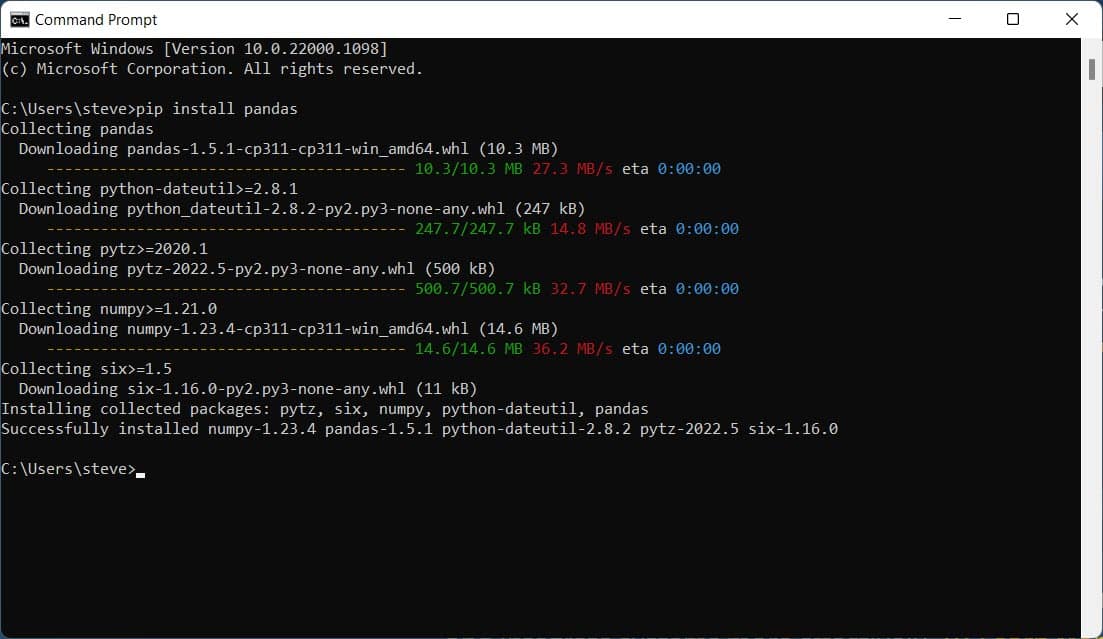
    To install these packages, use pip to install them in Command Prompt.  Pip is the recommended package management system used by Python. It makes installing these packages really fast and easy.
    pip install pandas
    A series of installation messages will then display in your Command Prompt window to advise if the installation was successful:
    pip install pandas in command prompt
    [click image to enlarge]
    The same installation technique can then be used for PolyFuzz:
    pip install polyfuzz
    After both these packages are installed, you should be good to run the script!

    Running the script

    There are a couple things to note before running the script. The first is that you will need the tool Screaming Frog to export all the page URLs from both sites (old & new) into CSV files. If you don’t have a license to Screaming Frog, I highly recommend getting one, especially if you are crawling large websites.  There is a free version of Screaming Frog, but it only crawls up to 500 URLs. Secondly, you will need ensure that those CSV files are placed into the directory specified within the migration mapper code.  For example:
    python migration mapper csv import paths
    [click image to enlarge]
    The paths specified in the code translates to the following paths on my hard drive:
    C:\python_scripts\migration_tool\internal_html_existing.csv C:\python_scripts\migration_tool\internal_html_staging.csv
    You will need to ensure those directories exist before running the script, with the CSV files in them. After everything is setup properly, it’s time to run the script. You will need to navigate to the directory in Command Prompt where the script is located.  For myself, I placed it in the following location:
    C:\python_scripts\migration_tool\migration_mapper.py
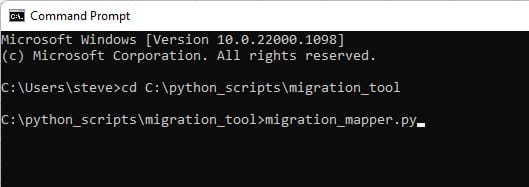
    To navigate to that directory in command prompt, type the following line:
    cd C:\python_scripts\migration_tool
    You can get the path navigating to the migration_mapper.py file in Windows File Explorer, right clicking the file, and copying the location. right click file in file explorer to copy path location Next, all you have to do is run the script by typing in: migration_mapper.py And voila! If everything is setup properly, the script will run and let you know:
    success message after running the migration mapping tool with python
    [click image to enlarge]
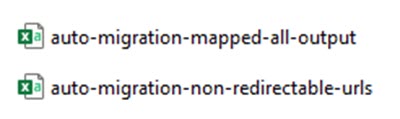
    One of the cooler parts of this script is that it provides you with a breakdown based off a similarity percentage.  So if you are running this script for a large website migration with lots of different URLs, the margin for error is pretty low. If you see there are URLs with similarity less than 100%, you can check those URLs manually within the new CSV files the script creates. It creates two files: two csv files that were exported from migration mapper python script Check the results in both CSV files when you are done and if there are any URLs that were not matched for redirection, you can view them, then make a plan on how to address them.

    In conclusion…

    Python is awesome for SEO automation! With the right script, you can perform jobs that would have taken you hours, days, or even weeks to complete within a few minutes. I have a big website migration coming up on a website with roughly 5,000 pages and I am excited to put this tool to the test.  If things go smoothly, I will share the results with an update. Thanks for reading! steven boffa website signature
    steven boffa website signature
    python script being executed for SEO URL mapping

    How to automate URL redirect mapping using Python

    Python is an incredibly powerful server side scripting language that can be leveraged for SEO. In this post, I am going to provide a step by step guide on how to use Python to automate URL Redirect mapping for a website migration.

    Before I get started, I want to acknowledge the creator of this script (it wasn’t me) and their hard work putting it together. Below is their Twitter profile and a link to the script on Github:

    lee foot twitter bio

    Twitter: https://twitter.com/LeeFootSEO
    Github: https://github.com/searchsolved/search-solved-public-seo/blob/main/migration_mapper/migration_mapper.py

    Let me be clear: I am not trying to piggyback off his work.  When I found his twitter thread about the script, there weren’t really any instructions on how to run it.  If you’re new to running scripts with Python, it might be a little bit challenging. 

    I also struggled with getting the hang of running scripts with Python at first, so this is why I thought this would be a good post for anyone who wants to learn. 

    So let’s get on with it!

    Article shortcuts
      Add a header to begin generating the table of contents

      URL redirect mapping for website migrations

      If you have worked client side as an SEO, you have probably worked on a website migration.  Myself, I have worked on many website migrations, including two recent big ones for opg.com & wwf.ca. Both OPG and WWF went from using Sharepoint to WordPress as their CMS. Both times, I had to create a document which listed the old page URLs and their new page URL.

      Why do we need to do this?

      As an example, with Sharepoint, the URLs were quite messy and often ended with an .aspx extension and of course, WordPress has clean URLs.  For example, the OPG homepage was: opg.com/Pages/home.aspx and the new URL to the homepage was just opg.com. spreadsheet of OPG.com URLs for migration With a high profile site like OPG, there are a lot of links from other websites which direct to the OPG homepage, and other pages across their website.  When those URLs change (switching from Sharepoint to WordPress), if there are not redirects put in place, traffic loss can occur from people visiting the old page URLs. Not to mention, there could be internal links within the content that have not been switched over to the new URL, so enabling a redirect will also prevent users visiting dead links. This is why setting up proper page redirects is so important! So, we map them all out in advance before the migration takes place. The process of mapping out all the URLs 1:1 can be quite tedious, especially if there are thousands of pages that need to be migrated.  In the past I have done this manually, and let me tell you, it is NOT fun.

      Using Python to automate URL redirect mapping and what this script does

      What if I told you there was a way you could map out all the URLs for your migration by running a simple tool? Luckily, someone smarter than me created one! The migration mapping tool is very simple really.  Here’s how it works: It takes two Screaming Frog exports, one from site A (old site or staging site), the other from site B (new live site).  It reads in the .csv files and attempt to find the best matching URL based on defined criteria:
      • URL
      • Page Title
      • H1 header tag 
      It also provides a secondary match as a fallback just incase. This is incredibly powerful stuff. When I worked at Powered by Search, upper management used to like to assign a dollar amount for each hour worked and it was roughly $200/hour if I recall correctly.  With this script, we can turn 10 hour job ($2,000) into a 5 minute job ($17).

      Installing Python on Windows

      To install Python on a Windows 10+ machine, it’s quite easy. The first thing you’ll want to do is to check to see if you already have Python installed.  Open up Command Prompt and simply type “python –version”. If Python is installed, you will get a message showing the version that is currently installed on your machine. I am on a Windows 11 machine, and when Python is not installed, after typing python into the command prompt, a Microsoft Store window pops up asking if you want to install it.
      microsoft store showing python app
      [click image to enlarge]
      You can easily install Python through this method, but I chose to download the latest version from python.org and run the Python installer instead. I also installed the python folder in my root C:\ directory.  By default, the Python installer places it into your Program Files directory.  The main reason I installed it under C:\Python\ is because it’s more practical to execute in Command Prompt and the path to the CSV file paths in the script also come from the root C:\ directory (more on that later). After Python is installed, you will also need to install Pandas & PolyFuzz:
      • Pandas is a software library used with Python for data manipulation and analysis.
      • PolyFuzz is a framework that uses Fuzzy String as a method for grouping and matching patterns with data.
      To install these packages, use pip to install them in Command Prompt.  Pip is the recommended package management system used by Python. It makes installing these packages really fast and easy.
      pip install pandas
      A series of installation messages will then display in your Command Prompt window to advise if the installation was successful:
      pip install pandas in command prompt
      [click image to enlarge]
      The same installation technique can then be used for PolyFuzz:
      pip install polyfuzz
      After both these packages are installed, you should be good to run the script!

      Running the script

      There are a couple things to note before running the script. The first is that you will need the tool Screaming Frog to export all the page URLs from both sites (old & new) into CSV files. If you don’t have a license to Screaming Frog, I highly recommend getting one, especially if you are crawling large websites.  There is a free version of Screaming Frog, but it only crawls up to 500 URLs. Secondly, you will need ensure that those CSV files are placed into the directory specified within the migration mapper code.  For example:
      python migration mapper csv import paths
      [click image to enlarge]
      The paths specified in the code translates to the following paths on my hard drive:
      C:\python_scripts\migration_tool\internal_html_existing.csv C:\python_scripts\migration_tool\internal_html_staging.csv
      You will need to ensure those directories exist before running the script, with the CSV files in them. After everything is setup properly, it’s time to run the script. You will need to navigate to the directory in Command Prompt where the script is located.  For myself, I placed it in the following location:
      C:\python_scripts\migration_tool\migration_mapper.py
      To navigate to that directory in command prompt, type the following line:
      cd C:\python_scripts\migration_tool
      You can get the path navigating to the migration_mapper.py file in Windows File Explorer, right clicking the file, and copying the location. right click file in file explorer to copy path location Next, all you have to do is run the script by typing in: migration_mapper.py And voila! If everything is setup properly, the script will run and let you know:
      success message after running the migration mapping tool with python
      [click image to enlarge]
      One of the cooler parts of this script is that it provides you with a breakdown based off a similarity percentage.  So if you are running this script for a large website migration with lots of different URLs, the margin for error is pretty low. If you see there are URLs with similarity less than 100%, you can check those URLs manually within the new CSV files the script creates. It creates two files: two csv files that were exported from migration mapper python script Check the results in both CSV files when you are done and if there are any URLs that were not matched for redirection, you can view them, then make a plan on how to address them.

      In conclusion…

      Python is awesome for SEO automation! With the right script, you can perform jobs that would have taken you hours, days, or even weeks to complete within a few minutes. I have a big website migration coming up on a website with roughly 5,000 pages and I am excited to put this tool to the test.  If things go smoothly, I will share the results with an update. Thanks for reading! steven boffa website signature


      steven boffa website signature